
My Files is your personal file workspace within Arcane. You can upload files from your computer, translate them into any of 130+ languages, and download the results. Uploaded files can also be added to Collections for use in Content Assist and Authoring Assist.

Uploading a File
-
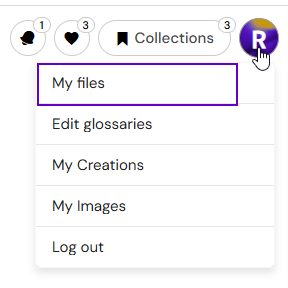
Open My Files from the left sidebar or via your Profile Menu.
-
Click Upload and select a file from your computer.
Supported formats: PDF, Word (.docx), PowerPoint (.pptx), Excel (.xlsx), HTML, and InDesign (.idml). The upload dialog shows only supported file types automatically.
Empty or unusually structured files (e.g., an empty InDesign file) still process — Arcane handles edge cases and will provide feedback if an issue is detected.
Translating a File
-
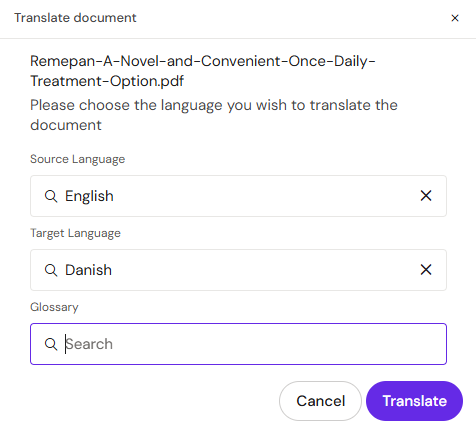
In My Files, click Translate next to the file you want to translate.
-
Confirm the source language (or select it from the dropdown if not auto-detected).
-
Select your target language. Language codes are shown alongside names to distinguish variants (e.g., zh vs. zh_HANS for Simplified Chinese).
-
If a Glossary is available for this language pair, select it from the Glossary dropdown. The dropdown shows all Public Glossaries for the pair, plus any Private Glossaries you own if you have the Glossary Editor role.
-
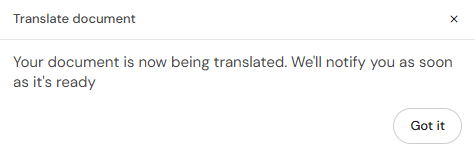
Click Translate. Arcane processes the file in the background and notifies you when complete.
-
The translated file appears in your My Files list and is ready to download.
Layout and design formatting is preserved in the translated output — no need to manually reconstruct any layouts.


Supported Languages
Arcane supports 130+ languages using a combined DeepL and Google Translate approach. DeepL is used by default for languages it supports; Google Translate handles all others — automatically, with no configuration required.
-
DeepL-supported examples: English, German, French, Spanish (ES-ES), Italian, Dutch, Polish, Portuguese, Japanese, Chinese (Simplified).
-
Google Translate handles: Maori (mi-NZ), Swahili, and other less common languages.
There is no manual engine selection. Arcane routes each language pair to the optimal engine automatically.
Using a Glossary
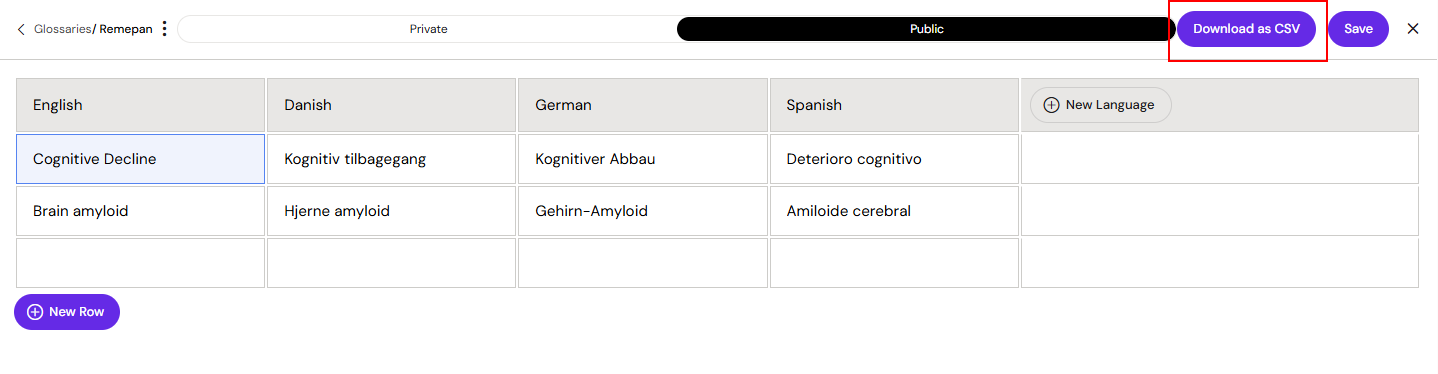
A Glossary is a set of preferred translations for specific terms — brand names, medical terminology, or regulatory language that must be rendered consistently. The translation dialog includes a Glossary dropdown showing all Public Glossaries configured for the language pair. If you have the Glossary Editor role, your own Private Glossaries also appear in the dropdown — useful while you're still building or refining a Glossary before publishing it. See Private & Public Glossaries for details on the visibility model.
To download your Glossary as a CSV:
-
Open the Glossary from your Profile Menu.
-
Click Download as CSV.
Downloading Translated Files
Once translation is complete, the translated file appears in your My Files list. Click the Download icon next to it to save the file. The file retains its original format — a translated PowerPoint saves as .pptx, a translated PDF saves as .pdf, and so on.
Translated files are accessible from both My Files and the notifications area — download from either location without losing your place in a conversation.