
Content Assist is built around conversations. You type a question or request in plain language, Arcane searches your approved document library, and responds with a referenced answer. You can follow up, refine, apply filters, and pick up where you left off — your full conversation history is saved automatically.
The Interface
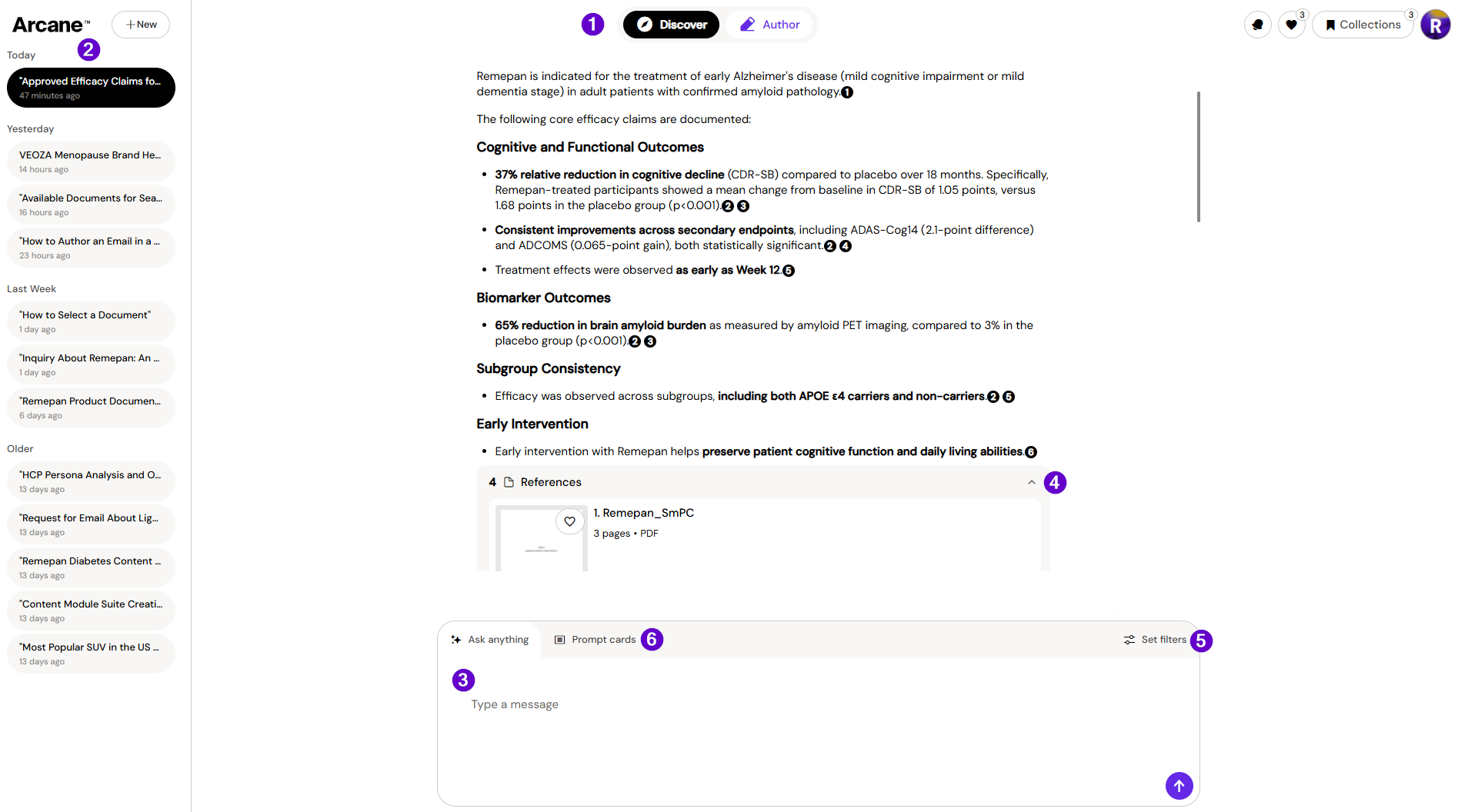
1 - Top bar — always visible. The + New button starts a new conversation. The mode switcher in the centre toggles between Discover and Author. On the right: bell (notifications), heart (Saved Documents), bookmark (Collections), and your avatar menu (My Files, My Creations, My Images, Glossaries, log out).
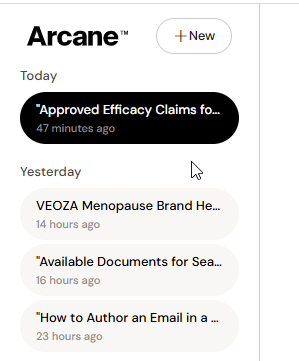
2 - Left sidebar — your conversation history. All previous conversations are saved and listed here. Click any conversation to reopen it. Use + New in the top bar to start fresh.
3 - Prompt input — the text field at the bottom of the screen. Type your question and press Enter. Your messages appear on the right with a darker background; Arcane's responses appear on the left.
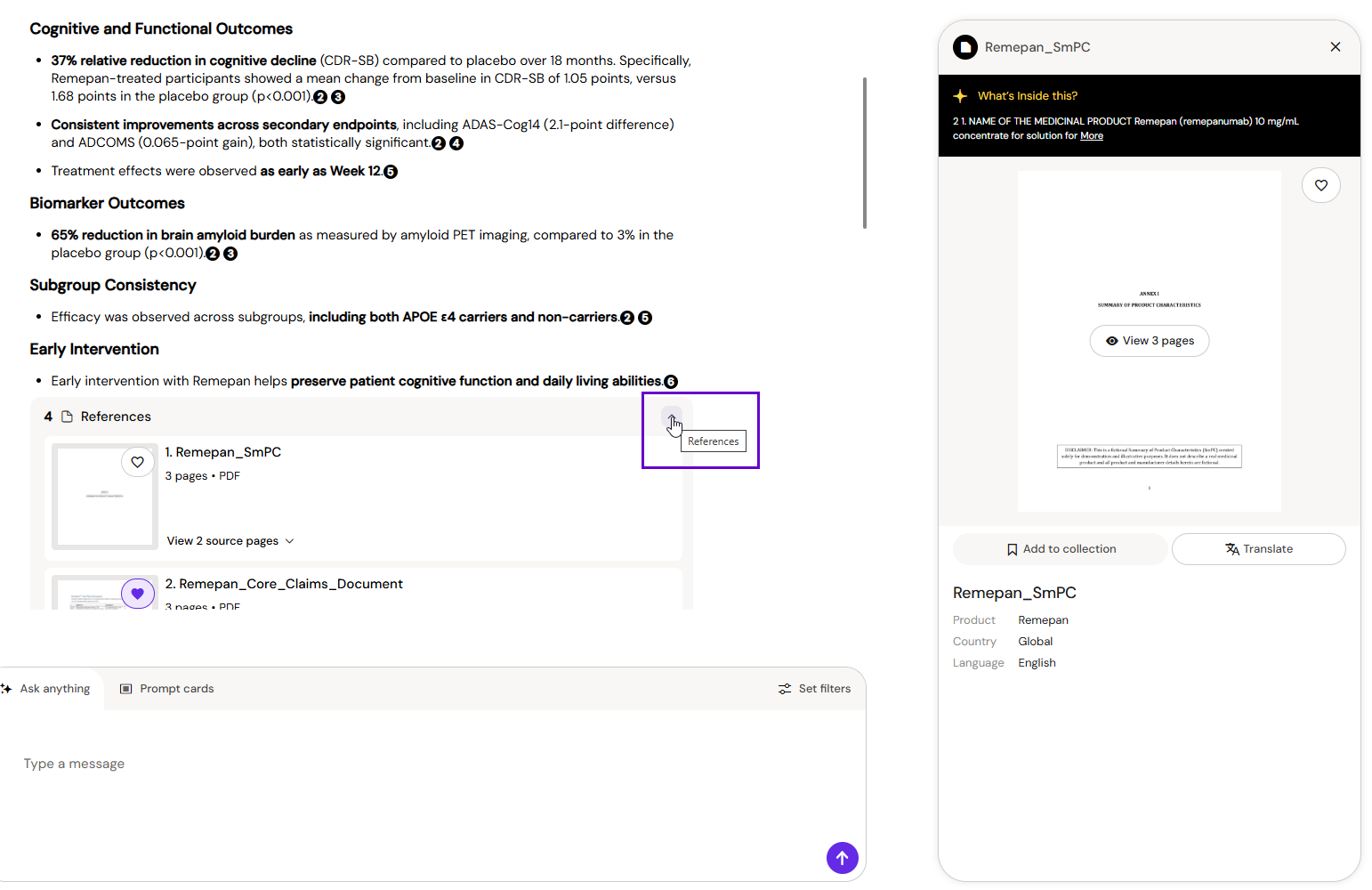
4 - References — every Arcane response includes a references section. Click the arrow on the right side of any response to expand it and see the exact documents and pages used. Click through to open any source in the document viewer.
5 - Filters — click Refine your search above the prompt input to open conversation filters. Use these to restrict searches to specific products, countries, or document types. Filters stay active for the rest of the conversation until you clear them.
6 - Prompt Cards — click the Prompt Cards icon in the toolbar to browse 27 pre-built prompt templates. Select one to populate the input with a ready-to-use starting point.
Starting a Conversation
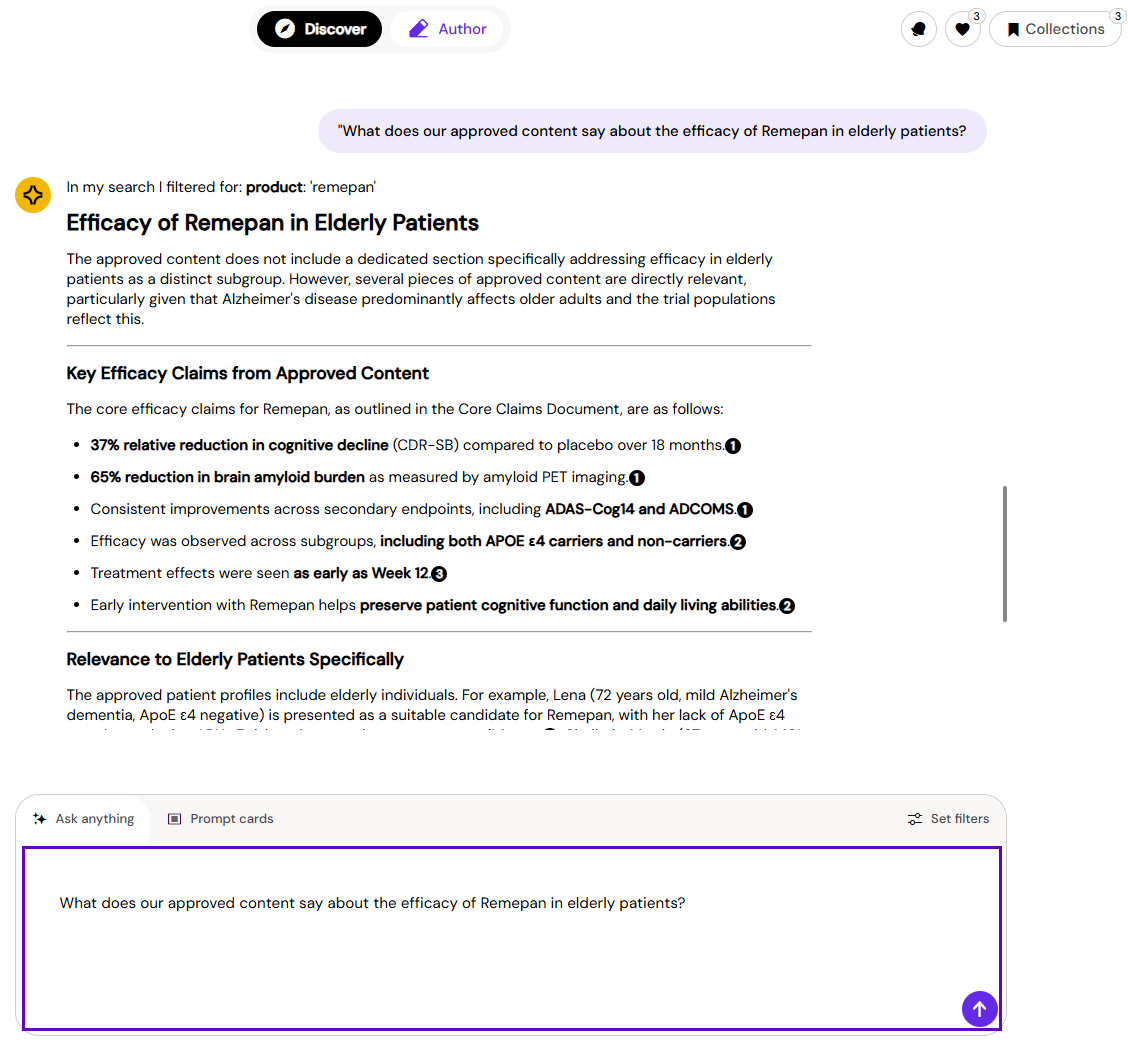
Type your question into the prompt input and press Enter. There are no special commands — write the way you'd ask a colleague.
A few approaches that work well:
-
Open questions — "What does our approved content say about the efficacy of Remepan in elderly patients?"
-
Comparison requests — "Compare the safety profiles of Remepan and Lorteva based on our approved studies"
-
Document-specific queries — "Summarise document MAT-2041"
-
Prompt Cards — browse pre-built templates if you're not sure where to start
Refining Your Results
Conversations have memory — Arcane keeps track of the full exchange, so follow-up questions don't need to repeat context.
If the initial results aren't right, you can:
-
Ask a follow-up — "Can you focus on paediatric data only?"
-
Apply filters — use Refine your search to narrow by product, country, or document type
-
Activate a Collection — scope the search to a specific set of documents
-
Start over — use + New to clear the context and begin a fresh conversation
Reviewing Sources
Every response links back to the documents it was generated from:
-
Click the arrow on the right side of any response to expand the references
-
Hover over an inline citation to preview the relevant passage
-
Click the citation or document title to open the full document in the viewer
Downloading a Reply
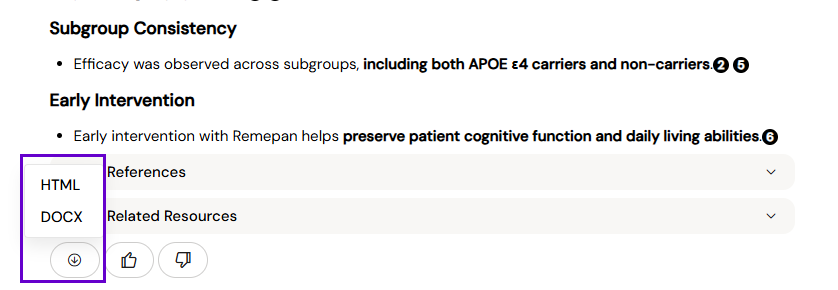
You can save any individual Arcane response directly to your computer using the save buttons alongside each message. Choose between:
-
HTML — preserves formatting for use in web-based tools
-
DOCX — opens in Microsoft Word for further editing
The original markdown content is converted automatically on download.
Your Conversation History
Every conversation is saved automatically. You can:
-
Reopen any previous conversation from the left sidebar and continue from where you left off
-
Pick up a conversation after a session timeout — history persists even when logged out
-
Browse back through earlier responses and their references at any time
Conversations are private to your account unless you share them.
Sharing Conversations
You can share a conversation link with a colleague. When someone opens a shared conversation link:
-
They can read the full conversation and all responses
-
Images added by the conversation owner are visible to them
-
They cannot type new prompts — only the conversation creator can send messages in a shared conversation
Note — Starting a new conversation clears the active context. To continue a line of research, use the same conversation rather than starting a new one. Links in Arcane responses open in a new browser tab so your current session is not interrupted.