Viewing a Document
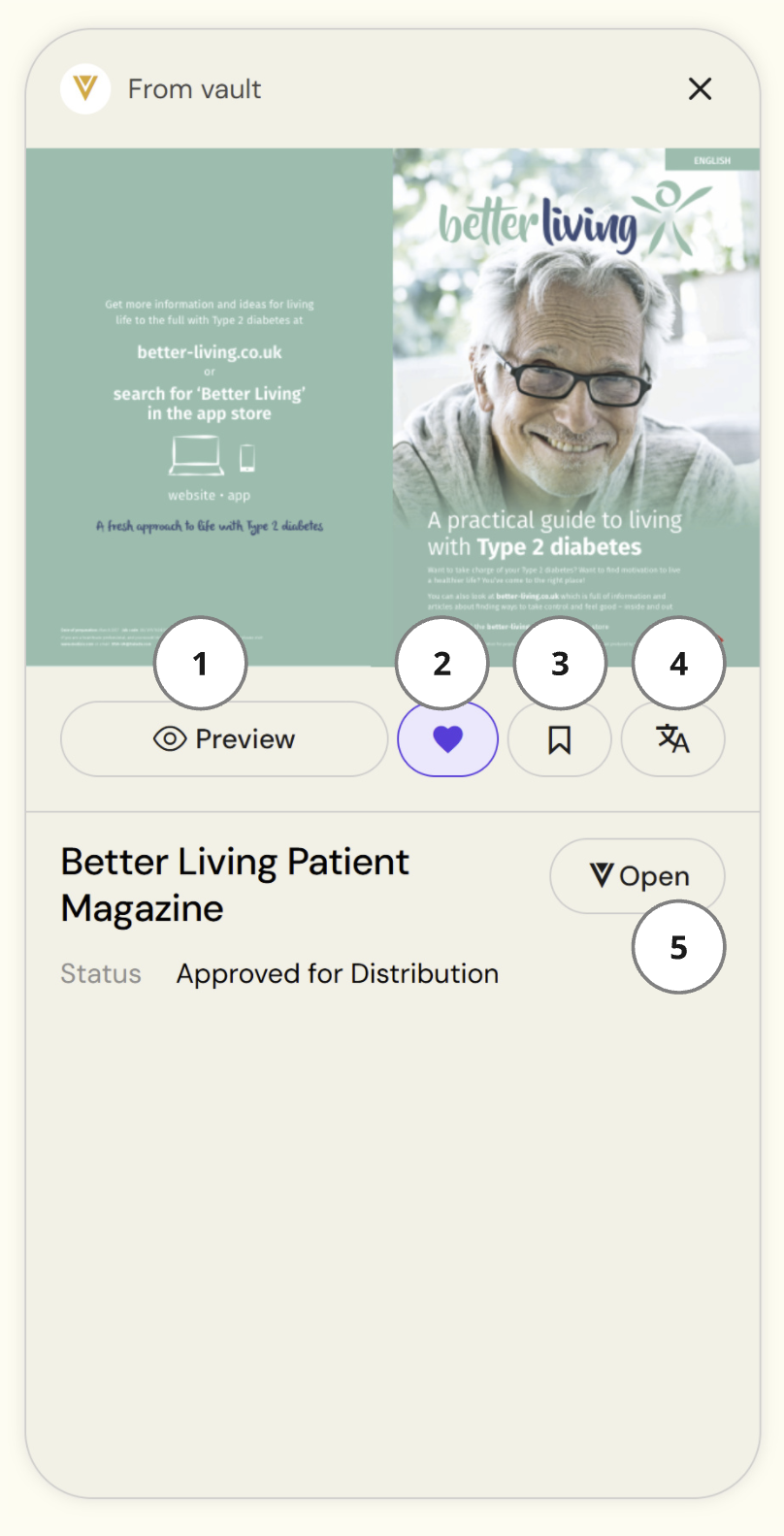
Click the Preview button in the Document pane to open any document and explore its content.
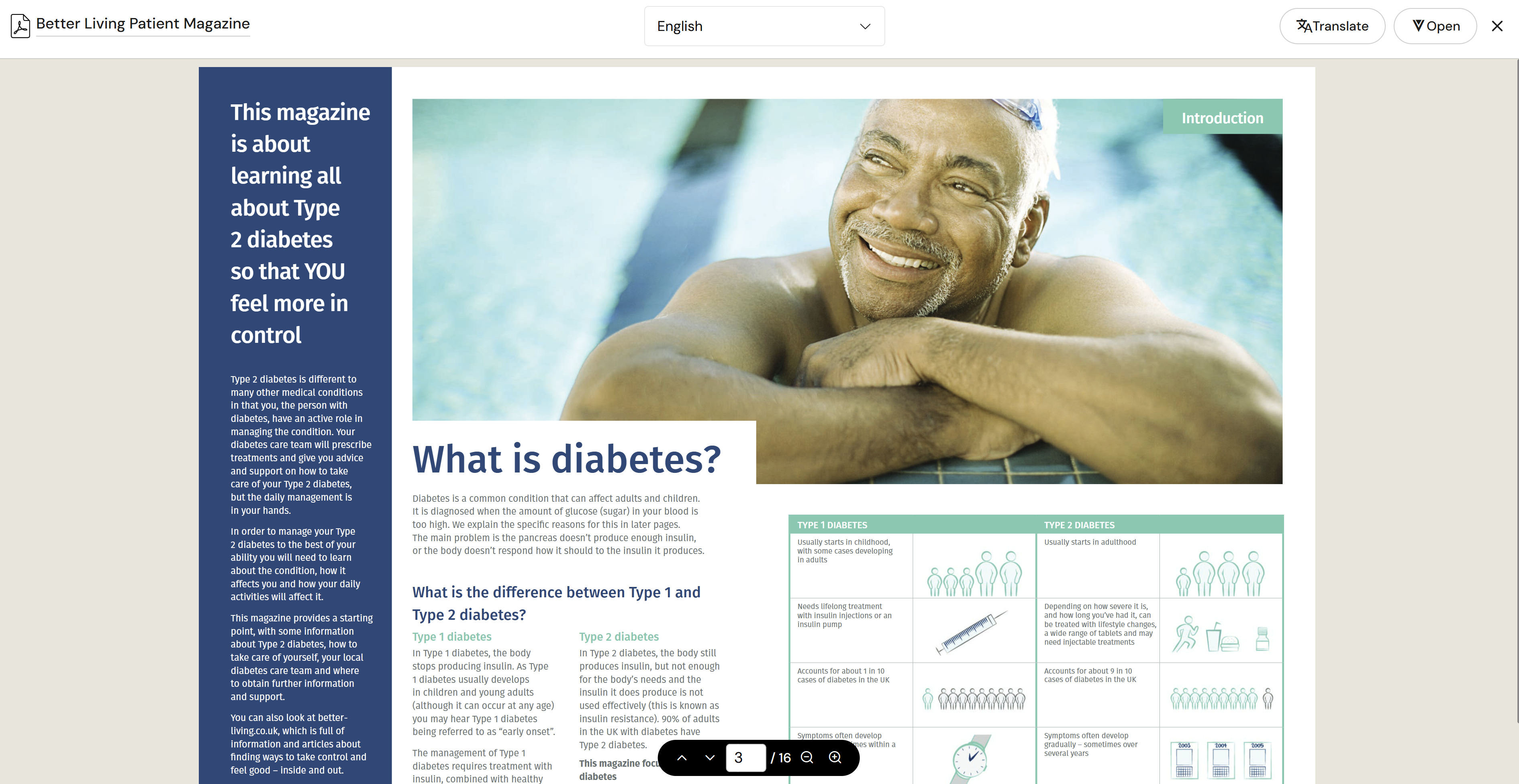
The document viewer gives you:
-
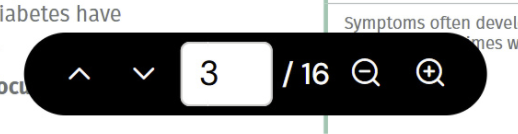
A Navigator Bar to move between pages and zoom in and out
-
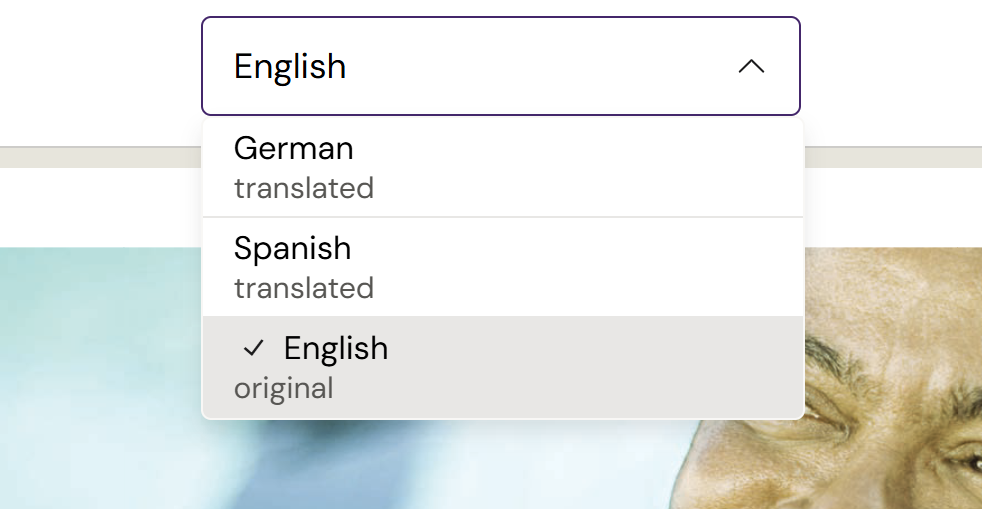
A Translation Dropdown to switch between language versions of the document that have already been translated
-
A Translate button to translate the document into a new language, or to refresh an existing translated version
-
An Open button to jump to the document in its source system (Vault PromoMats, MedComms, or other)
Selecting a Document
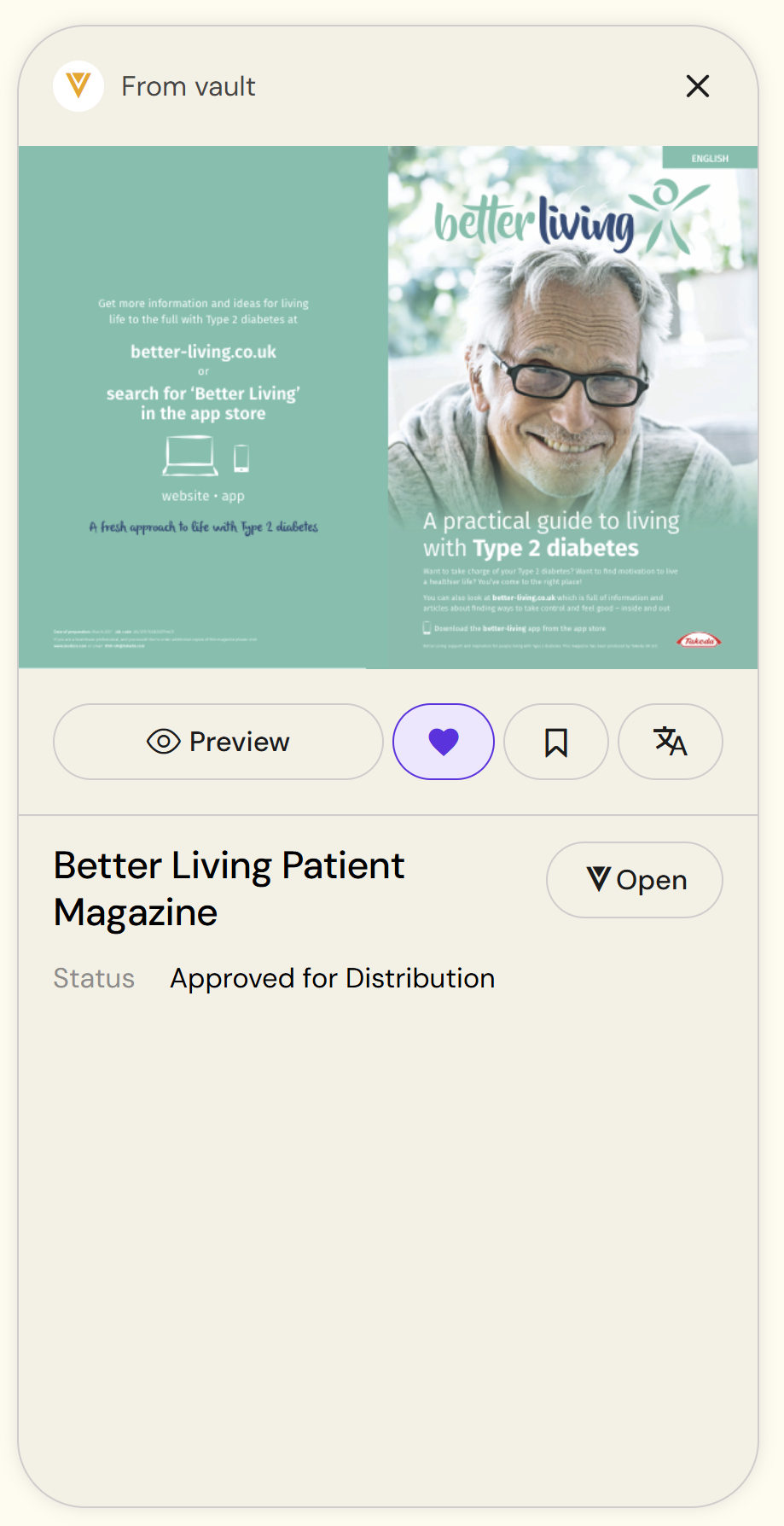
Clicking any document — from the references in a response, your Saved Documents list, or inside a Collection — opens the Document pane on the right side of the screen.
From here you can:
-
Open the document in the full viewer
-
Save or unsave it (toggle the heart icon)
-
Add it to a Collection — see Adding and Removing Documents
-
Translate it into a new language
-
Open it directly in the source system (PromoMats, MedComms, or other)