
Your Saved Documents list contains every document you have clicked the heart icon on. It gives you quick access to documents you reference frequently, without needing to search for them again.
Saving a document
Every Arcane response includes a list of reference documents. Click the heart icon next to any document name to save it. The counter in the top toolbar updates immediately.
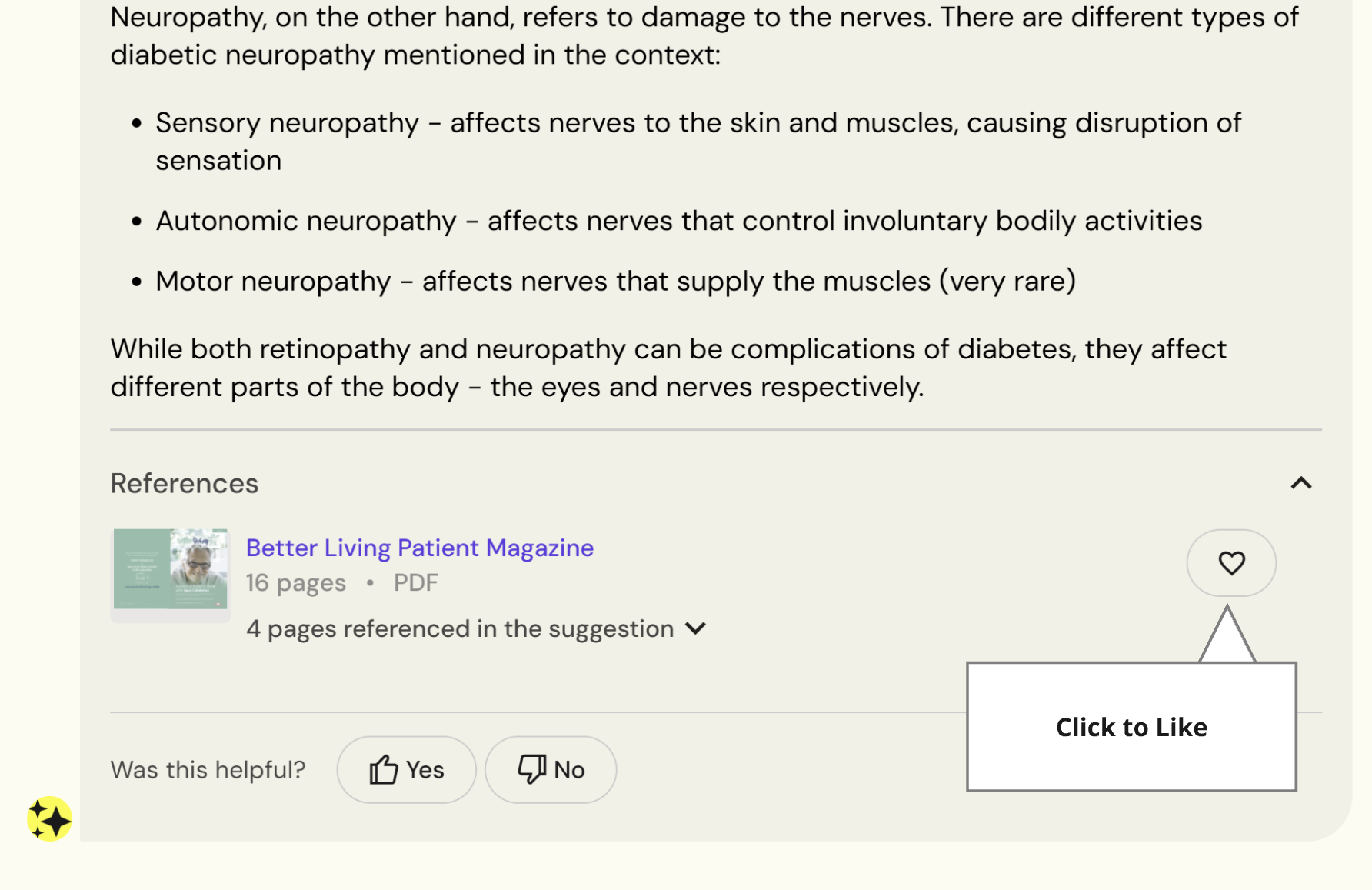
You can also save a document from the document viewer panel — the heart icon appears there too.
Using your Saved Documents
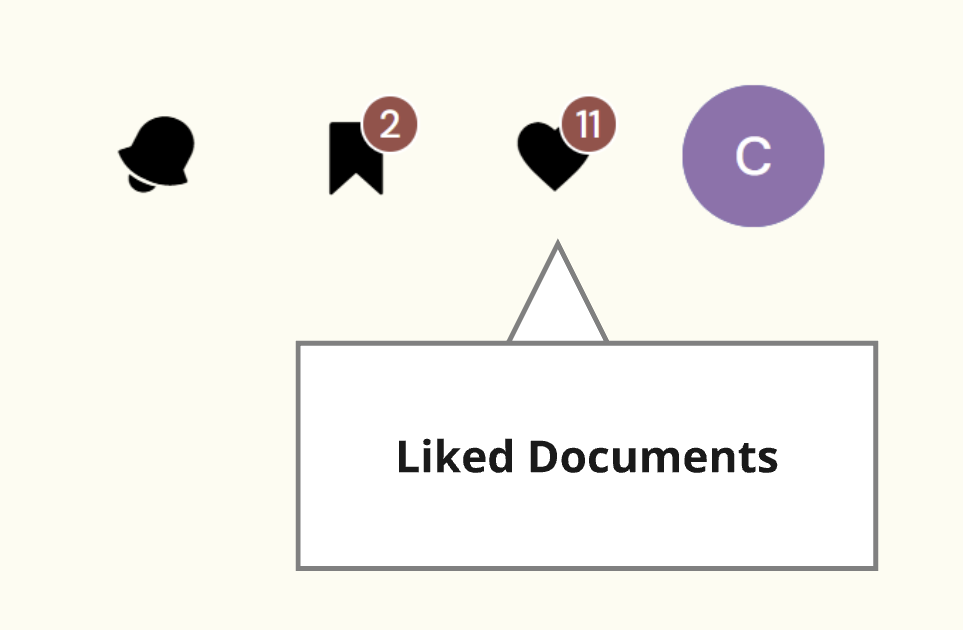
Open Saved Documents at any time by clicking the heart icon in the top toolbar.
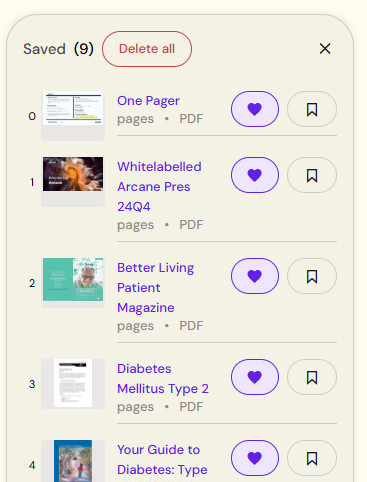
From the list you can:
-
Click any document to open it in the viewer — read, translate, or open it in the source system (PromoMats, etc.)
-
Add documents to a Collection — click the bookmark icon next to a document and select which Collection to add it to. See Adding and Removing Documents for more detail.
-
Clear your entire list with the Delete all button
Removing a document from Saved Documents does not delete it from your library or from any Collections it belongs to.