
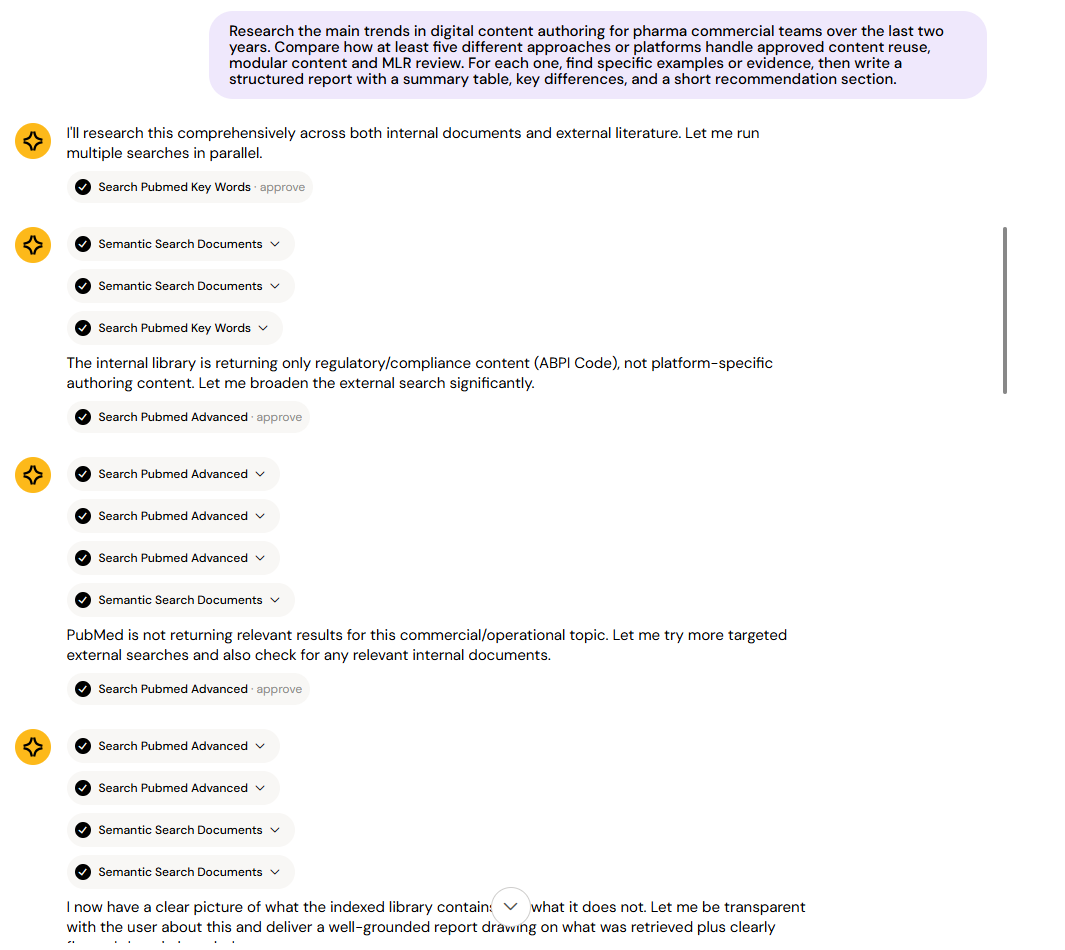
When you send a request in Discover, Arcane works through it in steps: it decides what to look for, searches, reads what it finds and then writes the answer. For larger requests you can follow the steps as they happen.
What you see while Arcane works
While Arcane works on a longer request, it shows the steps it is taking in plain language above the answer. When the answer is ready, the steps stay with it, so you can see how Arcane got there. If you reload the page later, the conversation looks the same.
Approving searches outside your library
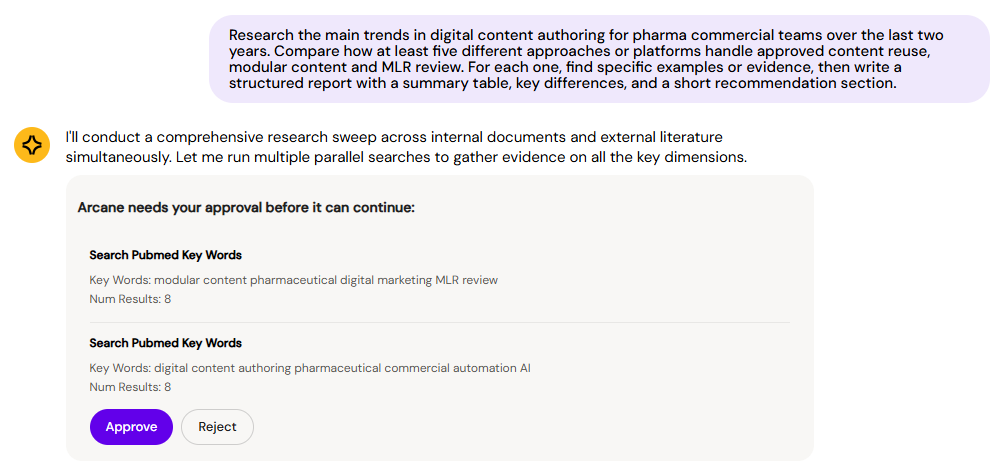
Arcane answers from your organisation's approved document library. When it wants to search a source outside that library, for example PubMed, it asks you first with an approval card above the answer. The card lists the search terms Arcane wants to use, and for external sources it reminds you that the results do not come from your approved content.
-
Approve to let Arcane run the search. The results become part of the answer, with links to the PubMed articles.
-
Cancel to skip the search. It takes one click, and Arcane explains that the search did not run.
Arcane sometimes asks more than once in the same answer, for example to run a follow-up search. Only the card you need to act on is open at any time.
Once you have decided, the cards fold into a single summary above the answer. Open it to see, in order, what you approved, what was searched and what you cancelled.
References and filters
Filters you set with Refine your search still apply, and the answer and its references only use documents that match them. References open the right document, and on the right page when a page is cited.
Good to know
-
Reloading the page while Arcane is still writing an answer stops that answer. Wait for it to finish, or send the request again.
-
Arcane asks for approval each time it wants to search outside your library. There is no setting yet to always allow a source.
-
There is no stop button or elapsed time display yet.
-
A colleague you share a conversation with can read it, including the steps and approvals, but cannot continue it.