-
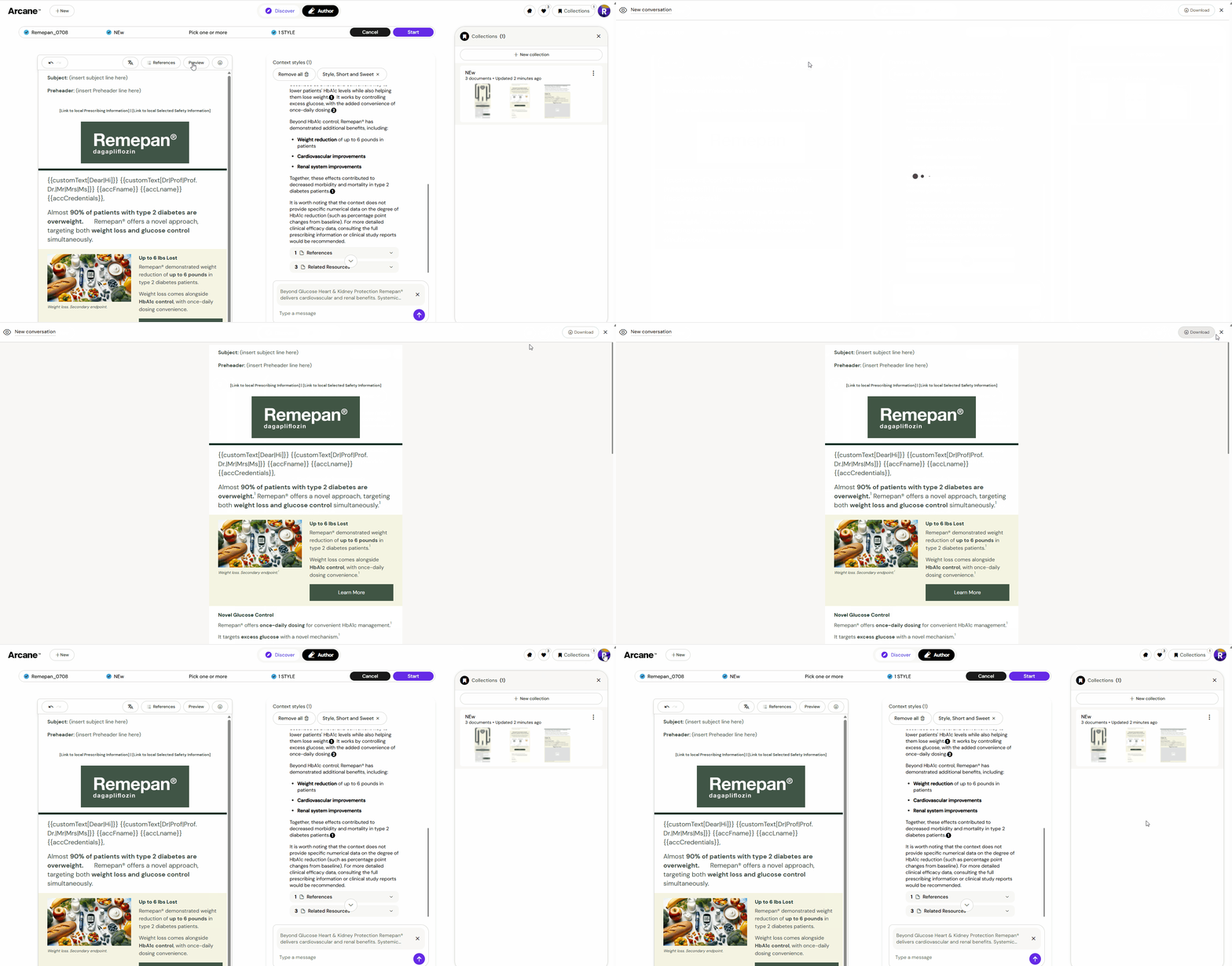
Switch to Authoring Assist mode from the left sidebar.
-
Select a Design System.
-
Confirm your active Collection is set (Arcane will source content from these documents).
-
Set your Persona, Tone, and any other context settings in the top bar.
-
Type your prompt. Example: "Create an email covering efficacy, safety, and dosing for Remepan, targeting a cardiologist audience."
-
Press Enter. Arcane selects layouts, finds relevant images, inserts citations, and builds the email.
-
Review and refine. When the email is ready, either download it as a ZIP or — if your organisation has Activator configured — Publish to Activator to continue refining and publishing from there.
See Downloading Your Email and Publish to Activator for details on each path.
Editing Your Email
Text Formatting
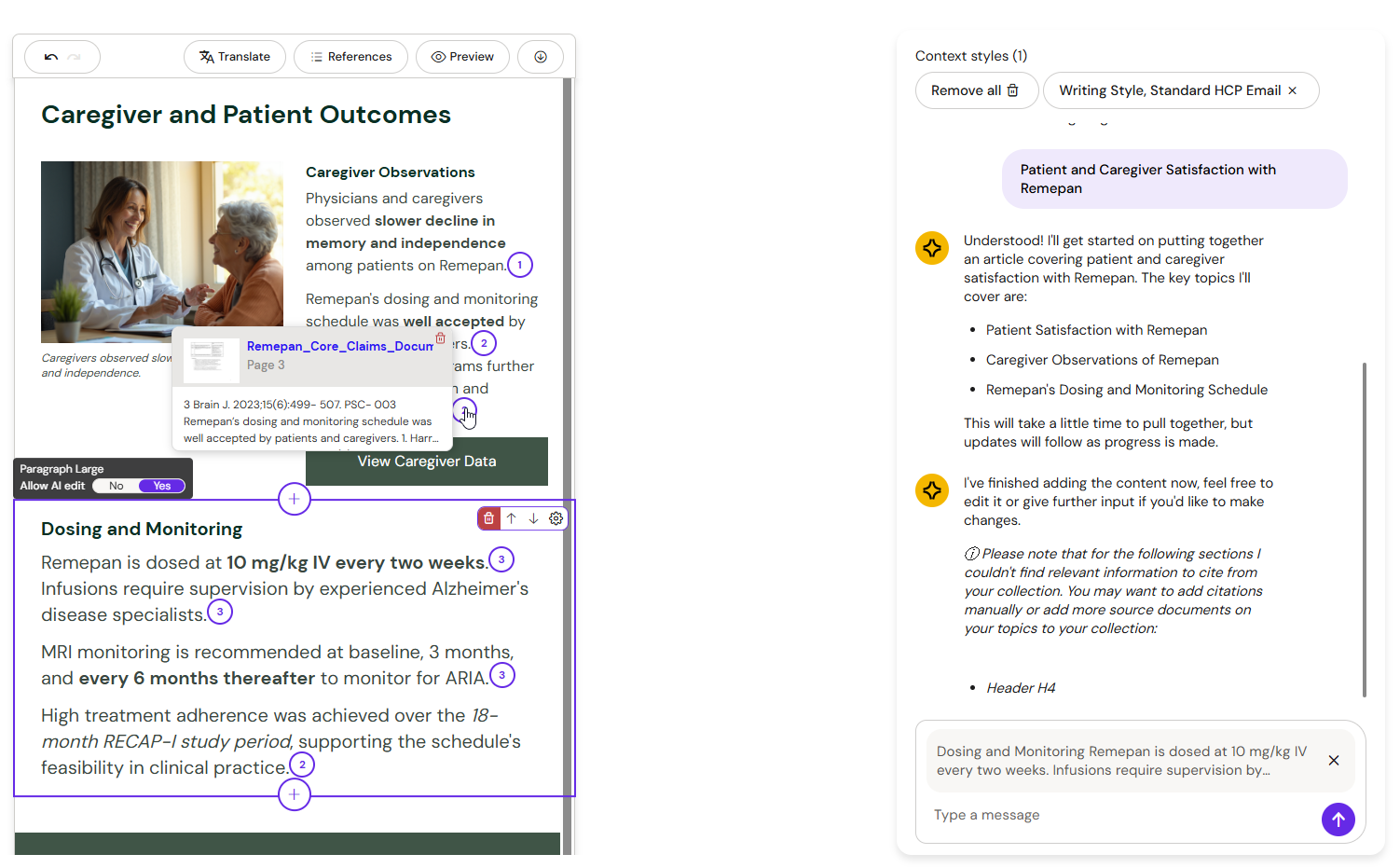
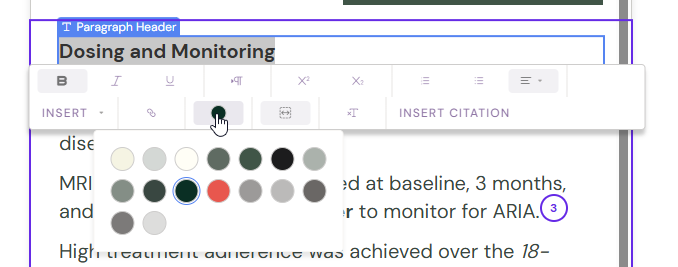
Click into any text area to edit directly. Select text to reveal the formatting toolbar:
-
Bold, italic, underline.
-
Brand colour palette for text and background.
-
Sub and superscript — useful for clinical data references.
-
Internal and external hyperlinks.
-
Email Tokens — dynamic personalisation fields (e.g., first name, territory).
Undo & Redo
Use Ctrl+Z / Cmd+Z to undo and Ctrl+Y / Cmd+Y to redo. Undo and Redo buttons are also in the editor toolbar. The full undo history is maintained for your session.
Previewing Your Email
-
Click the Preview button in the top toolbar.
-
The authoring UI hides and the email displays as recipients will see it.
-
In Preview, citations are correctly numbered and footnotes are formatted and grouped per source document.
-
Click Exit Preview to return to the editor.