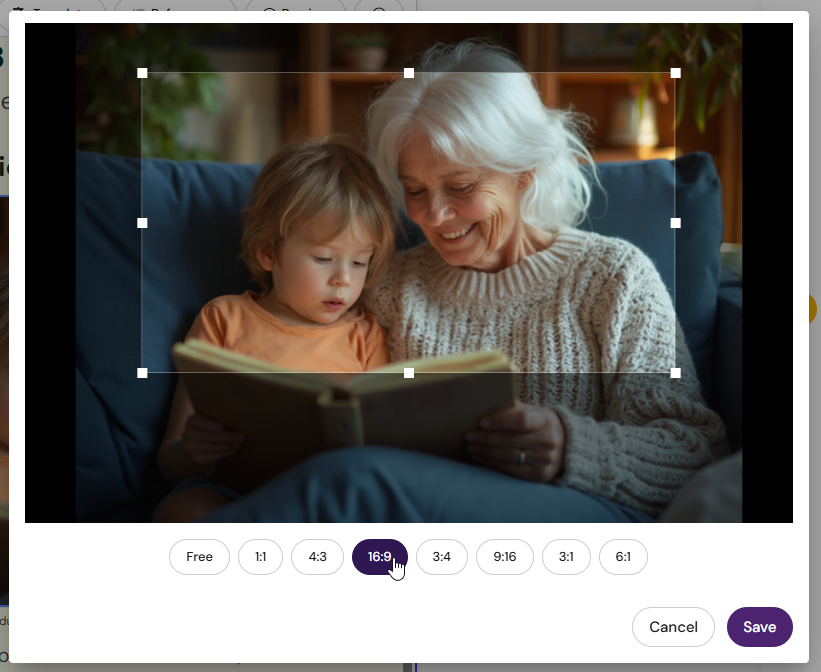
How Arcane Selects Images Automatically
When generating a layout, Arcane searches your approved image library for a relevant image using the full context of the layout — including concepts, colours, and text within the image. A product/country filter ensures only images licensed for your target market are used.
When generating a full document, Arcane selects a unique image for each slot — already-used images are excluded when filling multiple slots across layouts. Images are only reused if the available pool is exhausted.
Searching & Inserting Images Manually
-
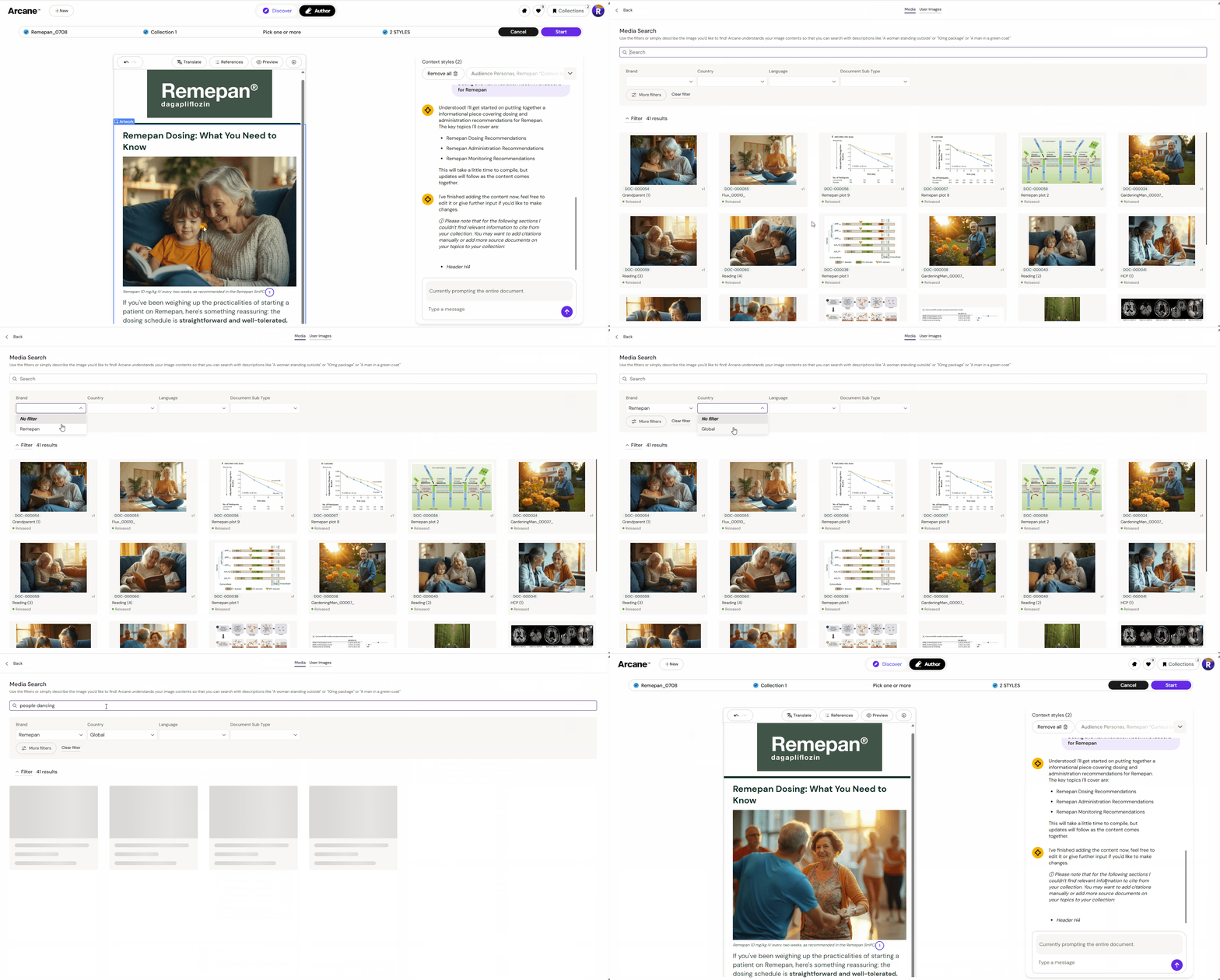
Click any image placeholder in your email.
-
Click Replace to open the Media Browser.
-
Set a Media Filter (product and/or country) if needed — this controls which images Arcane considers for your email.
-
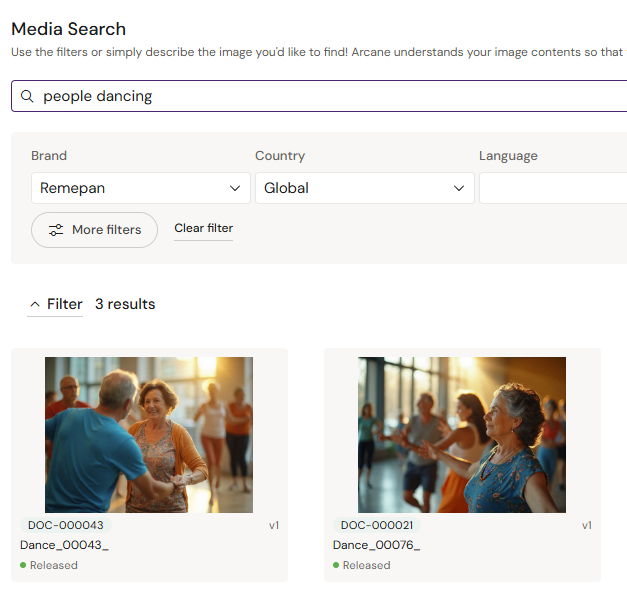
Type a natural language description in the search bar (e.g., "smiling woman in clinical setting" or "Remepan 10mg pack shot").
-
Click an image to insert it. Filter selections are remembered for your session.
AI Image Generation
-
Open Discover.
-
Enter Prompt. Describe the image you want to create incl. patient type, clinical setting etc. The more specific, the better.
-
Select a Style from the curated list to align with your brand or visual direction.
-
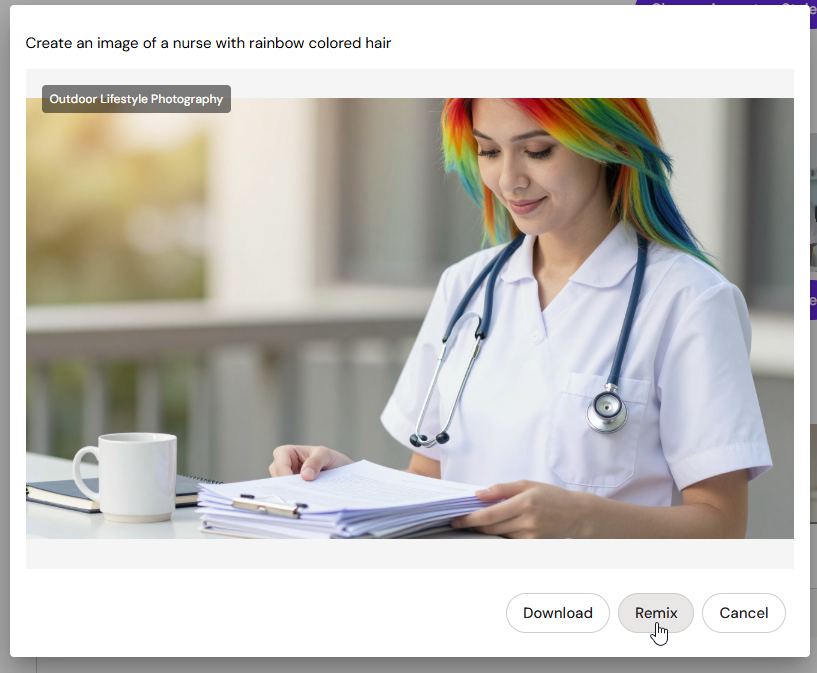
Review the generated image. Use Remix to create a variation based on any existing image.
-
Images are saved to your My Images gallery and can be inserted into any email via the Media Browser.
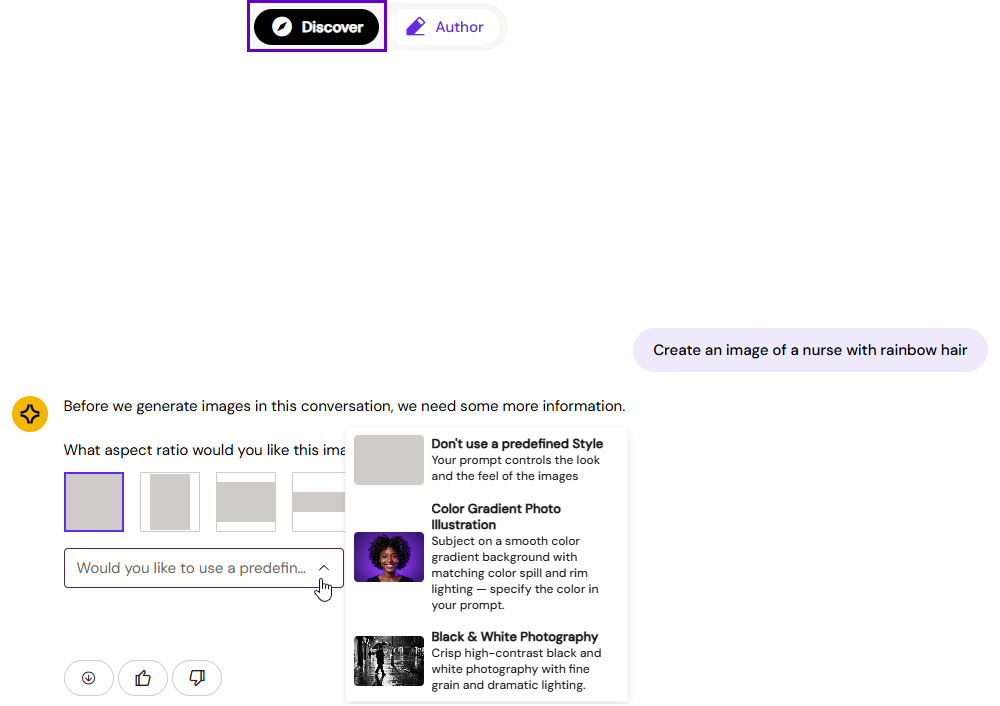
Custom Styles for your brand or campaigns can be set up by your Anthill team — contact Anthill to request this.
Note on charts and graphs — Arcane will not generate AI images of charts, plots, or graphs. This guardrail is in place to prevent potential data misrepresentation. Use approved chart assets from your library instead.
Adapting Images for Different Markets
To adapt an AI-generated image for a specific market, instruct Arcane to change the nationality or ethnicity of the subject or scene. Arcane will update the subject while preserving the rest of the image composition — useful when creating market-specific variations of the same campaign visual.
Example prompt: "Change the subject to a South Asian woman in a clinical setting"
Remixing an Image
Right-click (or open the context menu on) any image in My Images and select Remix. Arcane generates a new image based on the original, automatically linked back to the source image for reference.
Cropping an Image
-
Select an image in your email.
-
Click the Edit button that appears above the image.
-
Choose a preset aspect ratio or use the freeform crop tool.
-
Confirm. Crops are non-destructive — you can re-edit at any time.