
Emails in Arcane are composed of Layouts — pre-designed content blocks from your organisation's design system. Arcane selects a varied mix automatically, but you have full control to add, replace, or remove them.
How AI Selects Layouts
When generating a full email, Arcane selects a diverse set of layouts to drive reader engagement — typically opening with an image-focused block, then mixing CTAs, text, and callout layouts. The selection adapts to your prompt content.
Manually Adding a Layout
-
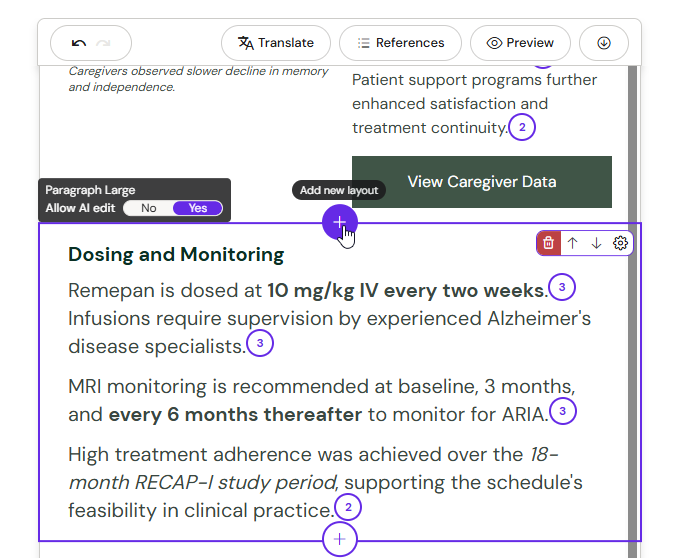
Hover over the top or bottom edge of any layout in your email.
-
A + icon appears. Click it to open the Layout Selector panel.
-
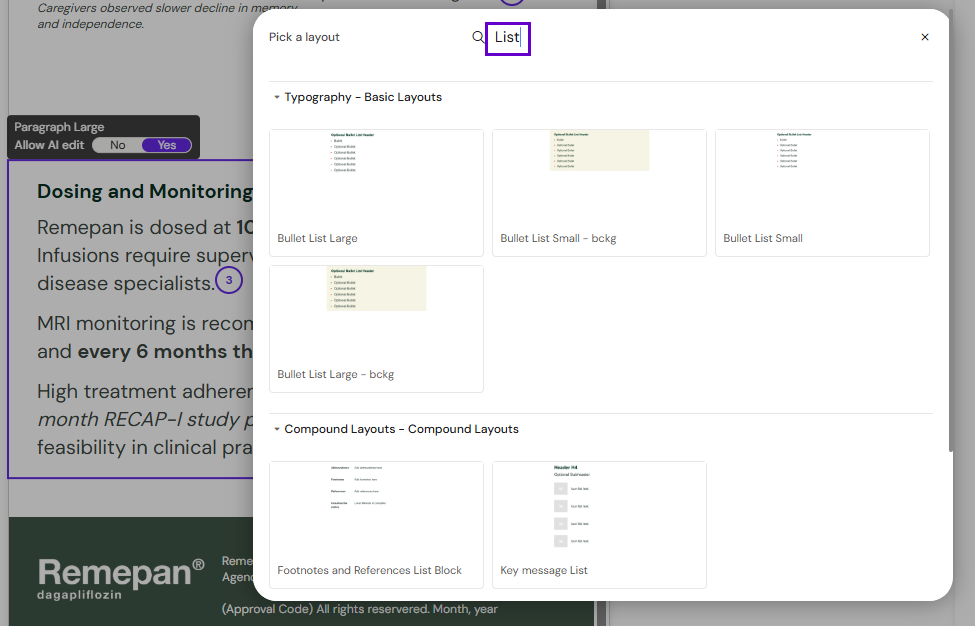
Browse layouts by thumbnail, or use the search filter to find by type, country, or brand.
-
10. Click a layout to insert it at that position.
Working with Optional Fields
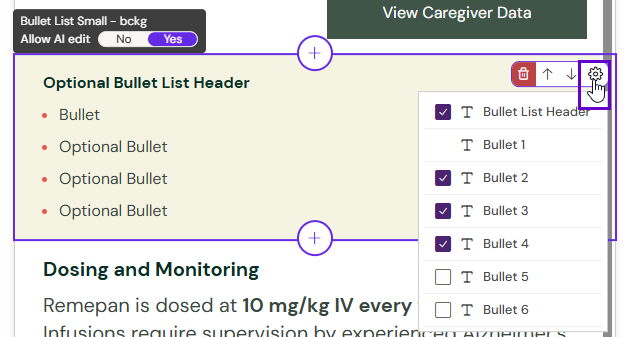
Some layouts include optional content sections that can be toggled on or off. Click the gear icon on any layout to see its optional fields. Arcane also enables or disables optional fields automatically when generating content.
Locked Layouts
Some layouts in your design system are locked and cannot be repositioned. If you prompt a change to a locked layout, Arcane will tell you it is locked rather than silently skipping the instruction.