
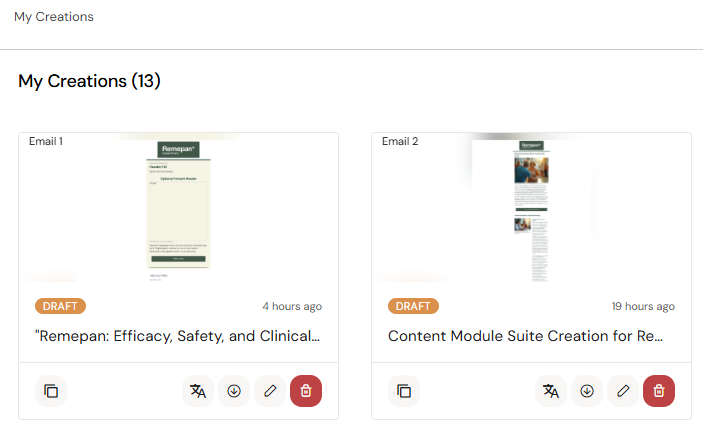
My Creations is where all your saved email drafts live. Every email you author in Authoring Assist is automatically saved here. You can return to any email to continue editing, duplicate it to create a variant, or delete emails you no longer need. Emails are listed in reverse chronological order — most recent first.
Opening a Saved Email
-
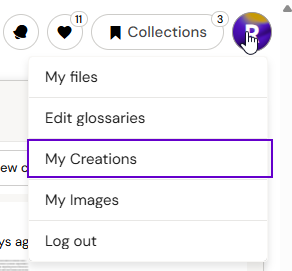
Click your avatar menu and select My Creations.
-
Click any email tile to open it.
The associated conversation, Collection, Persona, and Tone settings are automatically restored when you open a saved email.
Duplicating an Email
-
Hover over an email tile.
-
Click the Duplicate icon.
A copy is created immediately with the name "Copy of [Original Name]" and opens ready to edit. All tactic context settings from the original are preserved in the duplicate. Use this to create A/B variants or adapt an email for a different market or segment without starting from scratch.
Renaming an Email
Double-click an email tile's name to rename it. Changes are saved as you type.
Deleting an Email
-
Hover over an email tile.
-
Click the Delete icon.
-
Confirm deletion in the popup.
Deletion is permanent. Download the email before deleting if you may need the HTML or assets later.